Beta v2.0.40 · Windows · Android

Remote access, rethought

Light, fast, encrypted.
Connect and get on with it.

Remote desktop tools have grown heavier over the years: setup wizards, settings screens, licence warnings. CSRemoteDesk goes the other way — a single file, no installation, nothing to configure. The connection is AES-256 encrypted end to end and runs directly between the two computers.

Windows 8 / 8.1 / 10 / 11 and Server 2012+ · 7.9 MB download · Runs without installing

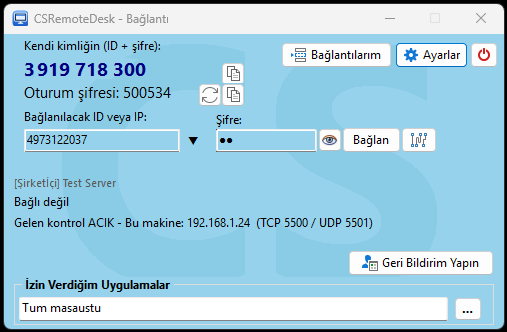
The CSRemoteDesk control panel: your own ID, session password, the field for the ID to connect to, and the Allowed Applications section
What's different

The things people complain about most

The frustrations people have voiced about these tools for years are well known. We kept the list on the desk while designing the product.

“I use it personally, but they flagged it as commercial and my session gets cut off.”

There is no such mechanism. We do not run a system that audits whether your use is commercial or personal. Your session is not cut short by a timer, and you are never asked to appeal to get unblocked.

“I just want to connect — why am I installing 200 MB?”

One file, a 7.9 MB download. The portable version installs nothing, needs no administrator rights and leaves no traces. A full installation is available too, for people who want permanent access — your choice.

“Apparently I need to open ports on my router. Not worth the effort.”

No router configuration. Neither side opens or forwards ports; ordinary outbound internet access is all it takes.

“When I get support, my whole screen is visible — email, messages, everything.”

Share only the app you choose. Everything else reaches the other side as black, and while it is on, file transfer and the clipboard are disabled too. Single-window sharing is still rare in this category.

“I want to know when someone connects to my computer.”

Require approval before sharing starts. When someone wants to connect, an approval window appears before your screen is shared — you see who is asking and what for. If you do not answer within 30 seconds the request is refused. On top of that, who connected and what they did is recorded in detail.

“Copy-paste doesn't work on the company network.”

We have our own transfer channel. If Windows' clipboard plumbing is closed off by security policy, use Shift+Ctrl+V — text and files both get through.

“The price I pay for security is slowness.”

Encryption does not get in the way of speed. AES-256 runs on Windows' own cryptography with hardware acceleration. And because traffic goes directly rather than via an intermediary server, latency drops as well.
Why CSRemoteDesk

Three things that set it apart

The three questions people ask most about remote access — security, speed, and setup effort — are at the centre of the design.

End-to-end AES-256 encryption

Screen, mouse and keyboard, cursor, clipboard and file transfers are all encrypted with AES-256-GCM. Keys are exchanged over ECDH P-256 and verified against the session password — the password itself is never sent in the clear. Encryption is automatic and requires no configuration; both sides simply need to be running a current version.

The server only introduces

Once the two computers have found each other, screen, file and control traffic flow directly between them — never through the server. That lowers latency and means your data is never processed on our side. On networks where a direct connection is impossible, the app falls back through the server on its own.

No port forwarding

Neither side needs router changes or open inbound ports. Connections are established with UDP hole punching; ordinary outbound internet access is all it takes. Home and office routers permit this by default.

Connection traceability

Who connected, when, and what did they do?

In remote access the real question is not “can I connect” but can I know what happened after the connection ended. CSRemoteDesk does not wait for you to ask; it brings the answer to you — and it does not let the person who connected delete that answer.

Records that cannot be deleted

Every connection made to your computer, every file transferred and every clipboard action is recorded. Nobody is granted delete permission on the record folder — only reading and appending to the end are possible. Every line carries a chained signature: if a line is deleted or altered the chain breaks and a warning says so on screen. That is the whole value of an audit record; if it can be deleted, it is not an audit record.

End-of-session summary

The moment a session ends a short summary appears on your screen: who connected, how long it lasted, with what permission, whether files or the clipboard were used. The report also states what did not happen — such as “no file or clipboard activity”. A user who goes and reads the logs is already a suspicious user; this report brings the information to you instead.

Block access with one click

Going on holiday, or in the middle of sensitive work? Right-click the icon next to the clock and choose “Block Access”: your computer closes to all connections and appears offline to everyone. Choose 1, 8 or 24 hours, or “until I turn it back on”; when the time is up it re-opens by itself. No administrator rights, no stopping services.

Time-limited and one-time access

Forgetting to remove a password handed out for one-off help is the most common mistake in remote access. You can now grant an identity access by the hour (1, 2, 4, 24) or for a single connection. One-time access closes itself after the first connection; the entry is not deleted, so you can see who used it and when.

A warning against strangers

The most abused scenario in remote access is not a technical vulnerability: it is the person who telephones and says “there is a problem with your computer”. If someone who has never connected to you asks for full control for the first time, the approval window opens even if the setting is off, shows a red warning, and the “Approve” button stays disabled for three seconds. Nothing changes for familiar identities.

You see who tried passwords

Anyone entering wrong passwords repeatedly is blocked automatically. If that happened while you were away from your computer you see it at a glance on your return: a red warning appears on the connection window and the blocked identity is shown in red in your unattended access list. Block records cannot be deleted either.

Session video recording

When you want to see what happened, not just what was logged: this computer's screen can be recorded as video while someone is connected to you. Recording is never covert — the other person is told and must accept; anyone who declines cannot connect. The video stays with you and is sent nowhere; the fingerprint of each recording is written into the tamper-proof connection log, so you can show it has not been altered afterwards. Old recordings are cleaned up automatically by age and by total size.

How it works

Introduction and data travel separately

The server only helps the two sides find each other. Everything after that is encrypted and direct.

Your computer (connecting) Remote computer (connected to) CSRemoteDesk server 1. Introduction only — no data passes 2. Direct connection — AES-256 encrypted screen · input · files · clipboard
Highlights

Details that make daily work easier

Voice chat — talk while connected, hear the remote computer

With the microphone and headphones icons in the top bar you talk to the other side and listen to the video or music playing on the remote computer. Audio travels directly and end-to-end encrypted between the two computers; it never passes through the server and is not recorded. Every connection starts silent, the controlled side decides, and echo suppression is built in. When several people are connected everyone hears each other. The phone app has it too.

Android app — connect from your phone

Connect to your computer from a phone or tablet by ID or IP and use it with mouse and keyboard. The app is the connecting side only: the phone’s screen is not shared. Touch gestures follow the familiar remote-desktop convention and a gesture card is shown on the first connection; saved passwords are encrypted with the device’s secure key store. During the beta it is supplied as an APK on the download page.

Privacy mode — share only the apps you choose

You do not have to show your whole screen to get support. Pick one or more applications; only those windows reach the other side and everything else appears black. If another window moves on top of a shared one, that area is blacked out too — nothing leaks from behind.

While privacy mode is on, file transfer, clipboard and text pasting are disabled, and the other side can only click and type inside the shared windows. On your own screen a yellow border marks what is being shared — that border is never transmitted.

Unattended access

Installed as a Windows service, the remote machine can be reached with nobody present — even when it is locked or no user is signed in. Control continues on the lock screen, the sign-in screen and UAC prompts, and the session survives users logging in and out.

Copy-paste that works on corporate networks

In some corporate environments Windows' standard clipboard plumbing is blocked by security policy and ordinary Ctrl+V simply does not work. CSRemoteDesk does the same job over its own transfer channel with Shift+Ctrl+V — for text and files alike.

Drag-and-drop file transfer

Drop a file, a folder or a piece of text onto the remote desktop window. Files land in the folder you dropped them on; text is pasted into the window under the cursor. The dual-pane File Manager additionally supports resuming interrupted transfers and whole-folder copies.

"My Connections" address book

Group your connections up to five levels deep, reorder them by dragging, and search them. Machines that are online are marked with a green dot and connect in one click. The list is stored only on your own computer.

See all features →

Try the beta

CSRemoteDesk is currently in beta and being tested with real users. The download page covers system requirements, installation steps and an antivirus warning you should read first.

Go to downloads